
Templates
Flutter app templates you can open and edit in FlutterPilot Studio
Start faster with ready-to-edit Flutter app templates. Pick a structure, open it in the builder, and customize screens to match your product workflow.
Browse the template gallery
Each card shows the template's screens. Choose Get Started to open it in FlutterPilot Studio.
How Flutter templates work in FlutterPilot
A template is a starting project, not a static mockup: the screens open in the same visual editor you use for the rest of the app.
- STEP 01
Pick a starting point
Choose a template from this gallery, or from the New Project dialog in FlutterPilot Studio, where templates sit next to a blank project and the AI prompt.
- STEP 02
Open it in the Studio
Get Started opens the template in FlutterPilot Studio in your browser, ready to edit.
- STEP 03
Make it yours
Change widgets, text, images, colors, and layout in the property panel, or describe the change to the AI Agent.
- STEP 04
Connect and ship
Add actions, state, and data, preview on different device sizes, then deploy to the web or export the Flutter source.
What you can change after opening a template
Everything in a template stays editable. Typical first edits are branding and content, followed by behavior and data.
- Widget structure and layout: rows, columns, stacks, lists, padding, and alignment
- Content and styling: text, images, fonts, colors, and spacing
- Screens and navigation between them
- Actions and state: taps, conditions, dialogs, and app or page variables
- Data: local collections and REST endpoints, plus Google Sheets, Firebase, or Supabase (Beta)
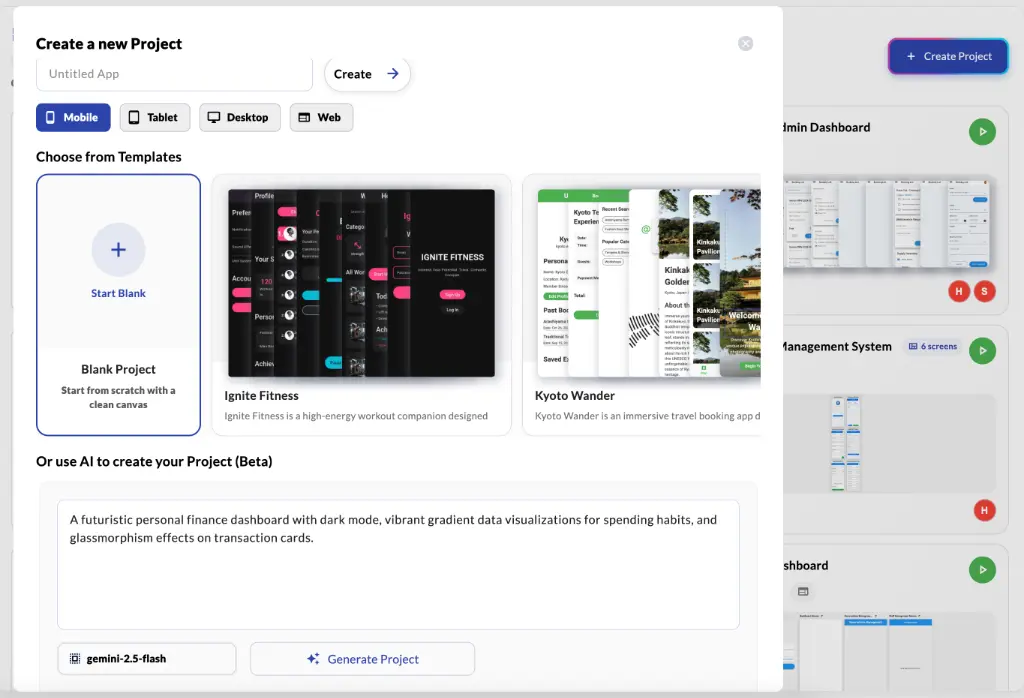
Template, prompt, or blank canvas?
Use a template when one is close to the app you want and you would rather edit than describe. Use a prompt when your idea is specific and no template fits; the AI Flutter UI generator guide has example prompts. Start blank when you want to compose every screen yourself in the visual Flutter UI builder.