
Visual widget editing
Work directly with the structure, properties, spacing, and styling of your Flutter interface.
Compose screens from Flutter widgets such as Column, Row, Stack, and ListView.builder, tune every property in a side panel, ask AI to draft or revise a layout, and export the Flutter source when you are ready.
Runs in the browser, with desktop and mobile apps also available.
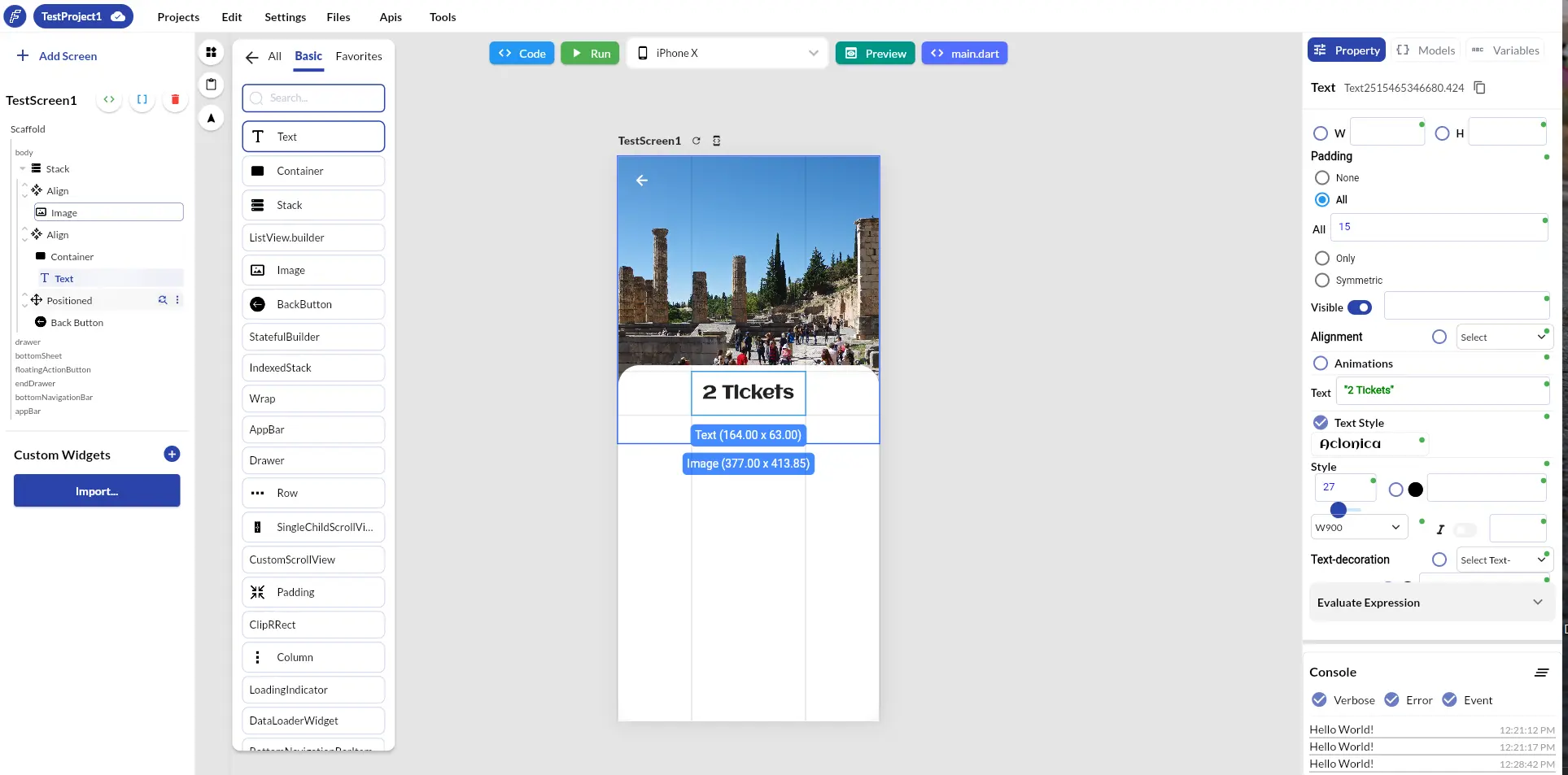
Widget tree, widget palette, device canvas, and property panel in one view.
Hand-writing every container, row, breakpoint, and style is precise but repetitive. Closed visual tools can be fast at first, then become difficult when a screen needs custom behavior. FlutterPilot keeps the visual workflow close to the Flutter project underneath it.
The same steps apply whether you start from a template, an AI draft, or an empty Scaffold.
Add a screen, then begin from a template, an AI prompt, or an empty Scaffold.
Drag Rows, Columns, Stacks, and lists from the palette, nest them in the widget tree, and set spacing and alignment.
Set text styles, fonts, colors, padding, and visibility in the property panel while the canvas updates.
Ask the AI Agent for a focused change, such as adding a search field above a list, instead of rebuilding by hand.
Switch between mobile, tablet, and desktop viewports to see how the layout adapts.
Add actions and data in the same project, or export the Flutter project as a ZIP for your own tooling.
The screenshot above is the FlutterPilot Studio editor. Each area maps to a part of building a Flutter UI:
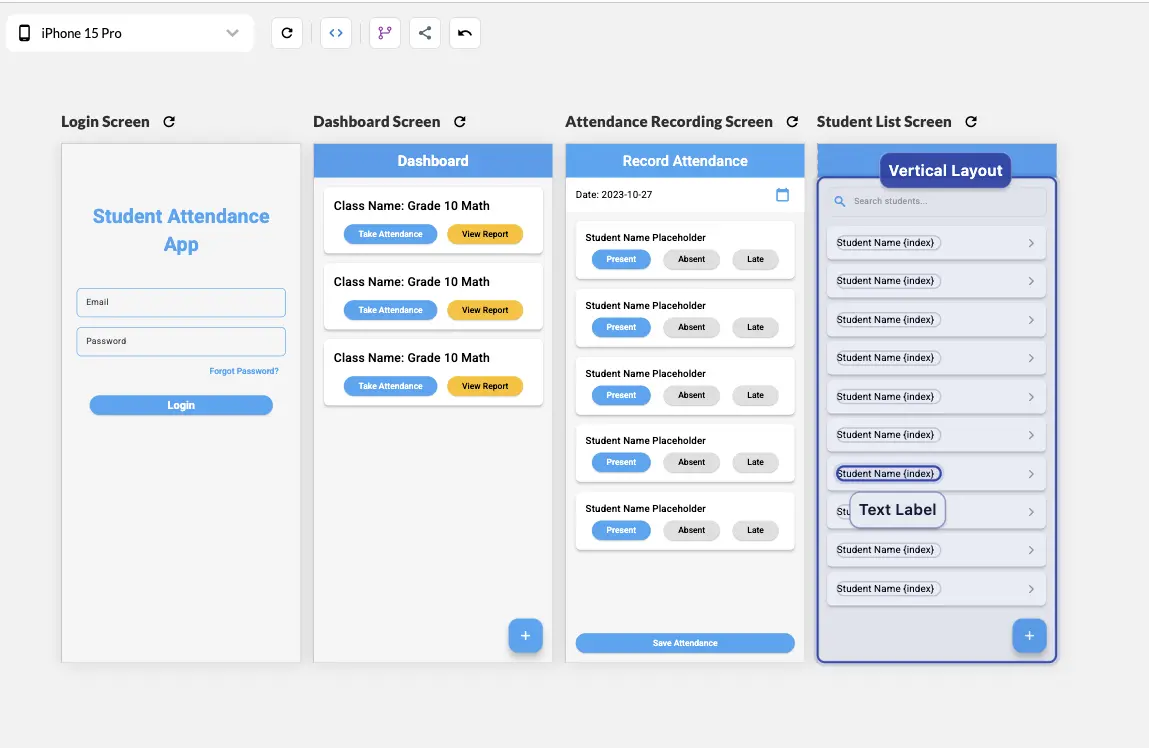
Work directly with the structure, properties, spacing, and styling of your Flutter interface.
Ask for a screen, component, or focused change without rebuilding the entire layout by hand.
Check the same screen at mobile, tablet, and desktop dimensions as you refine it.
Turn repeated UI patterns into reusable custom components with their own parameters.
Connect taps, conditions, state updates, dialogs, and screen transitions visually.
Keep a path back to a standard Flutter project for custom code and your existing workflow.
Use FlutterPilot when you want the speed of a visual builder but still care about widget structure, custom behavior, and source ownership.
Yes. Screens are built from Flutter widgets, and Export & Publish produces the complete Flutter project as a ZIP so you can continue in your own development environment.
The component reference covers layout widgets (Column, Row, Container, Stack, ListView, GridView, Wrap, SafeArea), UI elements, inputs, and navigation widgets such as app bars, tabs, and drawers—more than 130 Flutter widgets in all. You can also save your own reusable custom components.
Yes. AI is one way to create and edit. You can also work visually, start from a template, and make focused changes yourself.
This page covers building and editing screens by hand on the canvas. The AI Flutter UI generator guide covers producing the first draft from a prompt; both end up in the same editor.
Yes. The Studio includes actions, state, REST and Postman workflows, and connected data options for building beyond static screens.
Start in the browser, refine the project visually, and export Flutter source when it is ready for your workflow. Prefer a head start? Browse Flutter app templates.