Explore FlutterPilot here. Build your app in FlutterPilot Studio.Build faster with FlutterPilot AI.See the workflowSee how
Prompt-to-Flutter workflow

AI Flutter UI generator: from a prompt to editable Flutter screens

Describe a screen or a whole app in plain language. FlutterPilot generates Flutter widget structure you can open in the visual editor, revise with follow-up prompts, connect to data, and export as Flutter source.

Generate the starting point, then stay in control of every detail.

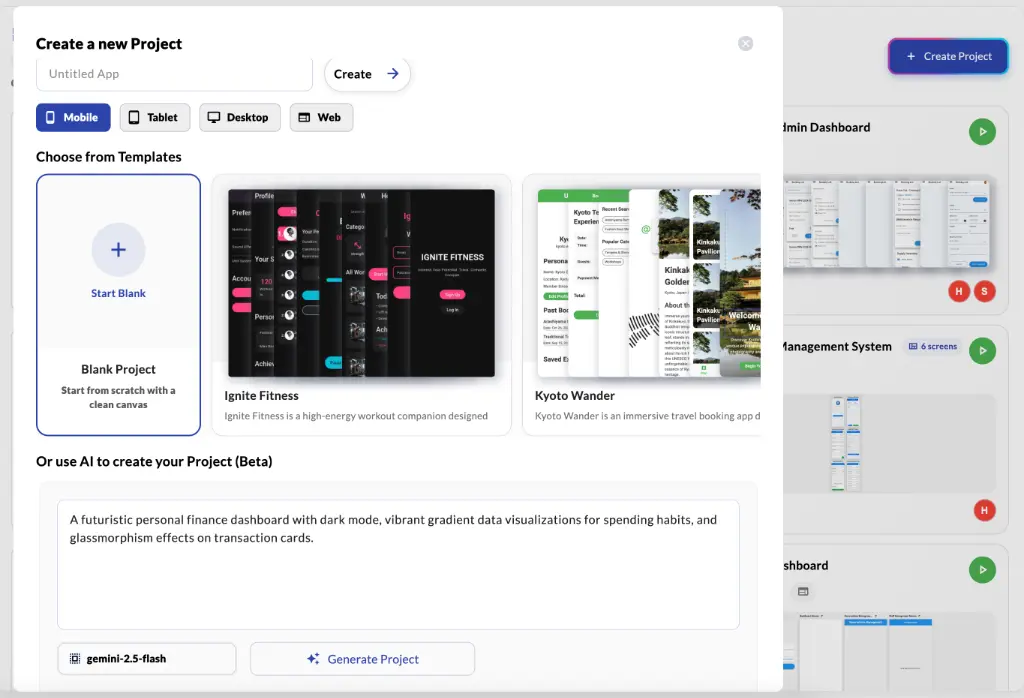
FlutterPilot New Project dialog with platform targets, templates, and an AI project prompt
AI project creator

Start from a template, or describe the app and choose Mobile, Tablet, Desktop, or Web.

Why it matters

The useful output is not a screenshot. It is a project you can keep shaping.

Generic code generation can leave you cleaning up disconnected snippets. FlutterPilot brings generation into the same workspace where you edit widgets, preview layouts, define behavior, and manage the rest of the app.

  • Generate screens and components from a concise brief
  • Iterate with follow-up instructions instead of restarting
  • Inspect and refine the result on a visual canvas
  • Add navigation, actions, and connected data in context
A practical workflow

From generated screen to exported project

Generation is the first step. The rest of the workflow happens in the same project.

  1. 01

    Write the prompt

    Include the purpose, sections, content, interactions, and visual tone.

  2. 02

    Generate

    Use the AI Agent for a screen or component, or the AI project creator for a multi-screen project.

  3. 03

    Inspect the widget tree

    Open the result in the visual editor and check the hierarchy before changing details.

  4. 04

    Refine

    Send focused follow-up prompts, or adjust properties directly where that is faster.

  5. 05

    Connect logic and data

    Add actions, app or page state, collections, Google Sheets, or REST endpoints.

  6. 06

    Export or deploy

    Download the Flutter project as a ZIP, build an Android APK, or publish to the web.

Prompt examples

Example prompts and what to check afterwards

Useful prompts name the screen's purpose, its sections, the data it shows, and the visual tone. These prompts come from FlutterPilot's own suggestions.

Single screen

Single screen prompt

“Profile page with avatar, stats, and recent activity”

Ask the AI Agent inside an open project.

Check the result

  • Is the header, the stats row, and the activity list each a separate widget you can select?
  • Is the activity list built from one repeatable item you can later bind to data?

Follow-up prompts

  • Add an empty state for when there is no recent activity
  • Make the stats row scroll horizontally on small phones
Multi-screen app

Multi-screen app prompt

“A high-energy workout companion using bold typography and bright distinct colors, featuring a streak-based progress ring and social leaderboard integration.”

Use the AI project creator in the New Project dialog.

Check the result

  • Which screens were created, and does navigation between them match your flow?
  • Are colors and text styles consistent enough to turn into reusable components?

Follow-up prompts

  • Add a settings screen reachable from the profile
  • Use one shared card component for workouts and leaderboard entries
Data-heavy app

Data-heavy app prompt

“Create a finance app with dashboard, transactions list, spending charts, and onboarding flow”

Use the AI project creator, then connect data in the Data Panel.

Check the result

  • Does the transactions list use fields you can map to real data (amount, date, category)?
  • Is onboarding a separate flow that runs before the dashboard?

Follow-up prompts

  • Bind the transactions list to a collection
  • Show a loading state while transactions are fetched

What generated output looks like

Generated screens are made of the same Flutter widgets you would place by hand—Scaffold, Column, Row, Stack, ListView, Container, Text, Image—so they appear in the widget tree and property panel like any other screen. That is what makes them editable rather than a flat image.

Prompt tips

  • Name the screen type and its goal before describing the look.
  • List the sections in the order they should appear.
  • Describe the data, not just the style: “transactions with amount, date, and category”.
  • Mention empty, loading, and error states if they matter.
  • Keep each follow-up prompt to one change, so revisions stay easy to review.
Core capabilities

Tools for the work between a prompt and a shipped app.

Project-aware AI Agent

Create screens, components, variables, and endpoints with the surrounding project in view. The AI Agent is labelled Beta.

Structured output

Generate editable interface structure that can be refined instead of a flattened image.

Targeted revisions

Ask for focused changes to layout, content, styling, or behavior as the product evolves.

Visual refinement

Use direct controls for the details that are faster to tune by eye than describe in a prompt.

Live responsive checks

See how generated interfaces adapt across common viewport sizes before you move on.

Source-code handoff

Export the Flutter project when you want to continue with local tooling and custom code.

Where it fits

A faster first draft for people who still care about the final implementation

FlutterPilot is most useful when prompt speed, visual control, and a real Flutter handoff all matter in the same workflow.

New screen exploration
MVP interface generation
Rapid product iteration
AI-assisted Flutter development
Common questions

What to know before you start.

What should I include in a Flutter UI prompt?

Describe the screen goal, key sections, content, interaction states, and visual tone. Concrete constraints usually produce a more useful first draft.

Can I edit the generated result?

Yes. Generated screens remain editable in the visual Studio, so you can adjust widget properties, layout, actions, and data.

Can it generate a whole app?

It generates a starting point. The AI project creator builds multi-screen Starter Apps with list, details, add, edit, and delete flows on local collections. Sign-in, API calls, and custom logic aren't generated for you yet; you add them in the editor, where the AI Agent (labelled Beta) can help. The 2.0.0 changelog explains the current scope.

Is the result limited to a prototype?

No. You can continue into navigation, state, integrations, deployment, and Flutter source export from the same project.

Go deeper

Build the first version in FlutterPilot Studio.

Start in the browser, refine the project visually, and export Flutter source when it is ready for your workflow. Prefer a head start? Browse Flutter app templates.

Open Studio