
Connect a REST API to your Flutter app
Endpoint Connectors let you describe each request to your API once—its method, URL, headers, arguments, and body—and then use it from any screen or action in your FlutterPilot project. Type endpoints in by hand or import a whole Postman collection, and give each one a mock response so you can design screens without calling the real API.
- Open it
- Integration menu → Endpoint Connectors
- Methods
- GET, POST, PUT, PATCH, DELETE
- Import
- Postman collection (JSON)
- In previews
- Mock responses only
Last updated October 27, 2026
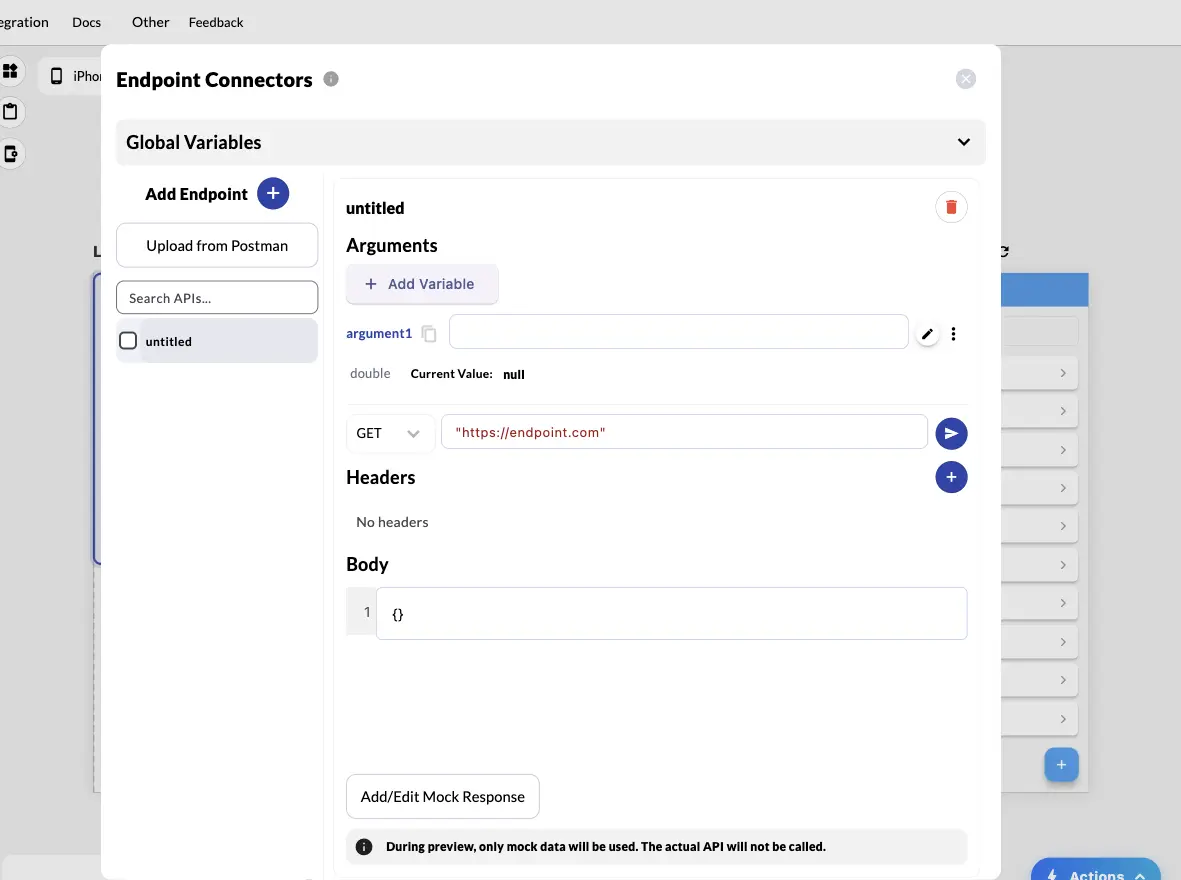
Add an endpoint
Open the Integration menu, choose Endpoint Connectors, and select Add Endpoint. Each endpoint has:
- A name. You call the endpoint by this name from widgets, actions, and custom code.
- The HTTP method: GET, POST, PUT, PATCH, or DELETE.
- The URL.
- Headers, such as Content-Type or an Authorization header.
- Arguments: typed values the caller passes in each time, such as a user ID or a search term, for the request to use.
- A body for requests that send data: raw JSON or form data (multipart, with text fields and files), edited as a simple list of fields or as code.
Values that every endpoint shares, such as a base URL or an API token, belong in Global Variables at the top of the panel, so you change them in one place.
Prefer to describe it? Ask the AI Agent (Beta) to create or update an endpoint, then review the result in Endpoint Connectors.
Import a Postman collection
If your API is already in Postman, export the collection as JSON and choose Upload from Postman in Endpoint Connectors. FlutterPilot creates an endpoint for each request in the collection.
Check the imported names, headers, and arguments afterwards, and move values that repeat across requests, like the base URL, into Global Variables.
Test the request and type the response
Select the send button in the endpoint editor to call the API and see the status, body, headers, or error it really returns. When the endpoint has an output schema, View/Edit Output Schema lets you adjust its typed fields. Those fields are what you pick from when you bind a list or a text widget to the response.
Design with mock responses
Add/Edit Mock Response stores an example response: a status code, a body, and optional headers. During preview, FlutterPilot uses only this mock data and doesn't call the actual API.
That means you can design every state of a screen, including errors, before the backend is ready, and previews never use up your API's rate limits.
Show the response on a screen
The DataLoaderWidget calls an endpoint and gives you three slots to design:
- onLoad, shown when the data arrives. Widgets inside it can read the response through the data variable.
- onLoading, shown while the request is in flight, usually with a progress indicator.
- onError, shown if the request fails, with the failure available as error.
To show a list, put a ListView.builder inside onLoad, choose the response's list as the items to repeat, and bind the widgets in the item layout to each record's fields.
Call an endpoint from an action
To send data, such as submitting a form, saving a record, or deleting an item, add the Call Endpoint action to a button's action flow. It calls the endpoint and keeps the complete response for later actions in the same flow, so you can show a snackbar, update state, or open another screen depending on the result.
In custom Dart code, endpoints are available on App.apis, with the endpoint's arguments passed as named arguments:
App.apis.getUser.fetch(id: appState.userId)When you export or publish
Endpoints are part of the project. The exported Flutter source includes them as Dart code (an apis.dart file and an HTTP client), and Android and web builds use them too. Before you share an app:
- Keep secrets out of the app. Anything inside a client app, including headers and global variables, can be read by its users. Put secret keys in a backend you control and call that instead.
- For a web app, the API must accept cross-origin (CORS) requests from your app's address, because the visitor's browser makes the calls.
- Android builds from FlutterPilot include the internet permission automatically.
Related guides
Try it in FlutterPilot Studio.
Open your project, or start a new one from a prompt, and follow these steps in the Studio.